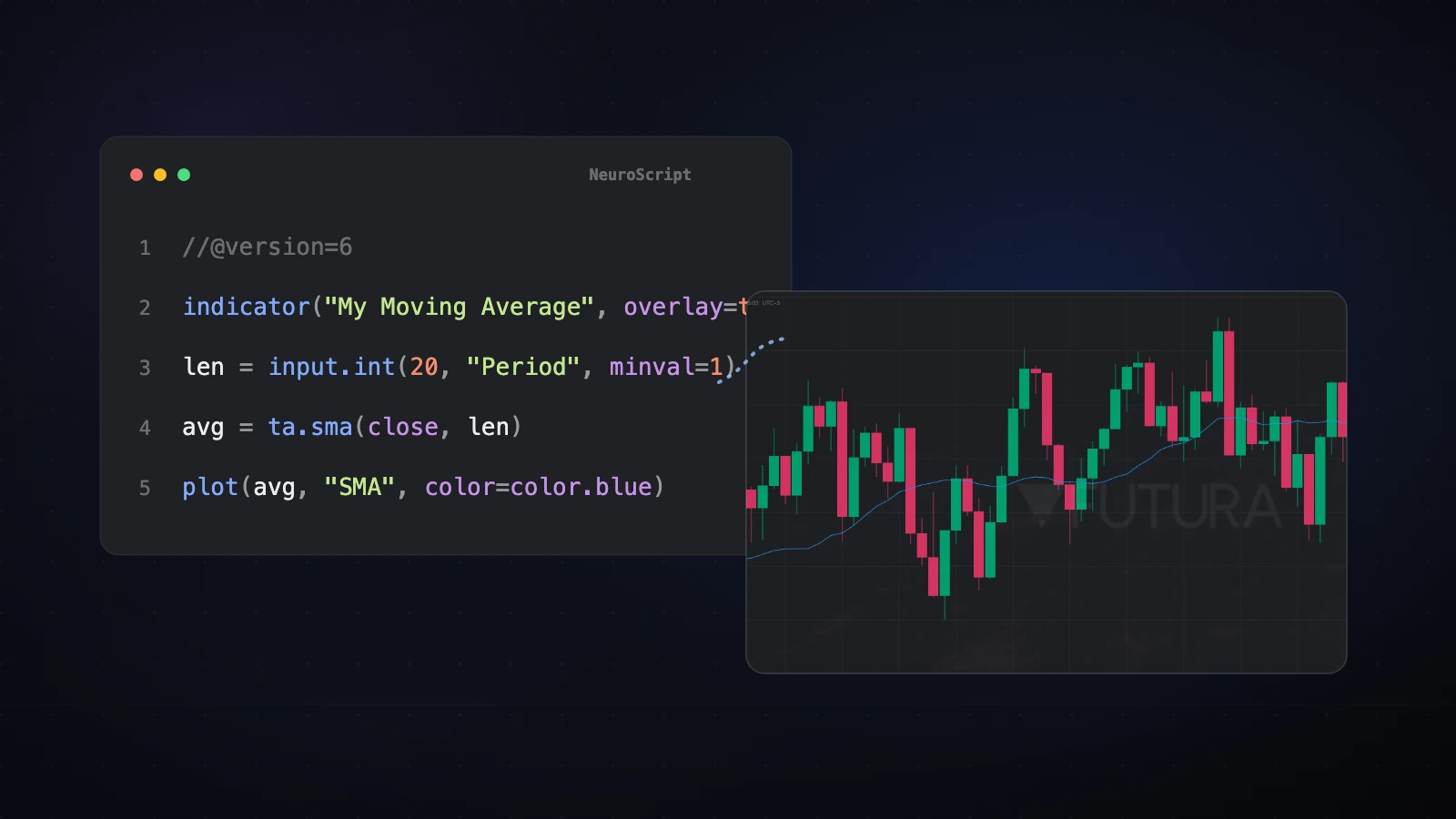
How to Create a Trading Indicator with AI: Step by Step

Complete tutorial to build your own technical indicator on Futura Broker by describing it in plain English. The AI generates NeuroScript code in seconds.
This tutorial shows you how to generate a custom technical indicator on Futura Broker in under 5 minutes, without writing a single line of code. You describe the indicator in plain English and the AI translates it into NeuroScript — the platform's native indicator language.
You will learn how to:
- Open the Create with AI modal
- Write a prompt that produces quality code
- Refine the generated version without rewriting the prompt from scratch
- Validate the indicator in the Preview before applying it to your chart
- Apply it to your trading chart or publish it on the Marketplace
Prerequisites
- A Futura Broker account (any tier — you don't need to be VIP)
- Access to the Trade Room (
/traderoom) - An indicator idea. If you don't have one, use one of the 3 ready-made suggestions that appear in the modal's hero
Step 1 — Open the Create with AI modal
In the Trade Room, find the NeuroScript icon in the left sidebar (a chart symbol with a brain). Click it to open the scripts panel. Then click Create with AI.
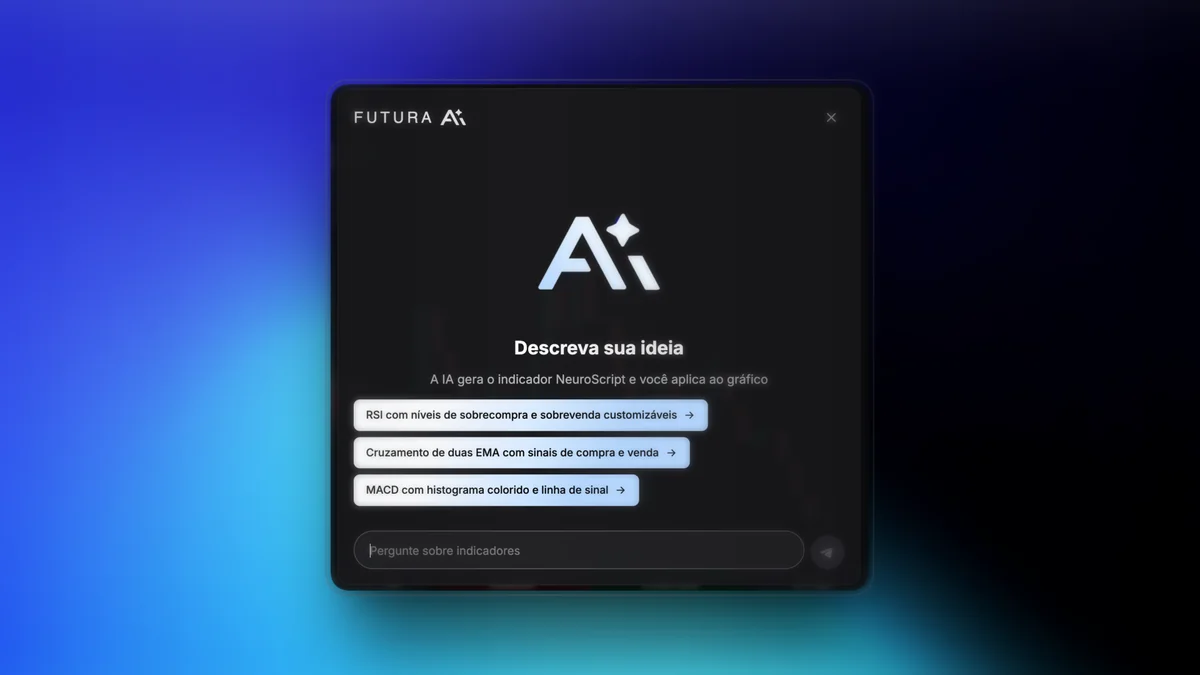
The interface has 3 important elements in the hero:
- 3 ready-made suggestions (RSI, EMA, MACD) — click any of them to fill in the prompt automatically
- Prompt history (appears once you've generated at least 1 indicator) — the last 10 are saved in your browser
- "Continue last session" banner — if you closed the modal by mistake, it picks up exactly where you left off
Step 2 — Write a good prompt
The quality of the indicator is directly proportional to the quality of the prompt. Three rules:
1. Specify the type of indicator. Don't write "a good indicator to buy with." Write "an RSI," "a SuperTrend," "a moving average crossover."
2. List the configurable parameters. State which inputs the user should be able to adjust (period, multiplier, calculation source).
3. Describe the visual signals. Colors, arrows, fills. The AI needs to know what to render.
Example of a good prompt
Create a 14-period RSI with customizable overbought and oversold levels (defaults 70 and 30). Paint the background red when RSI is above the overbought level and green when it is below the oversold level.
Example of a bad prompt
I want an indicator that makes money
The AI has no way to translate that into code.
3 tested prompts that work well
| Type | Prompt |
|---|---|
| Trend | "SuperTrend with configurable ATR 10 and multiplier 3. Green line in uptrends, red in downtrends. Blue arrows on upward crossovers, orange on downward ones." |
| Momentum | "Classic MACD (12, 26, 9). Histogram with 4 colors: strong and weak green for rising bars, strong and weak red for falling bars. Signal line in orange." |
| Volatility | "20-period Bollinger Bands with deviation 2. Translucent blue fill between the bands. Mark in yellow when price leaves the upper or lower band." |
Step 3 — Wait for the generation
Click Send. The streaming starts immediately — the NeuroScript code appears character by character in real time, with a blinking cursor.
Average generation time: 3 to 8 seconds, depending on the complexity. Simple indicators (RSI, EMA) come out in 3s. Composite indicators (SuperTrend + volume filter) take up to 10s.
When it finishes, the modal automatically switches to the Preview tab (see Step 5). The Code tab shows the full generated NeuroScript.
Step 4 — Refine (without rewriting the prompt)
The first version is rarely perfect. The Refine mode exists exactly for this: after the first generation, the textarea changes to "Request an adjustment" — and the AI receives the current code + your request.
Common requests that work well:
- "Change the line colors to blue and orange"
- "Add configurable inputs for the MACD periods"
- "Increase the default RSI period from 14 to 21"
- "Add alerts when RSI crosses above 70"
- "Add a colored fill between the two EMAs"
Each refine produces a new complete version of the code. You can do 3-4 rounds until you're satisfied. Adjustment requests don't clutter the history — only original prompts are saved.
Step 5 — Validate in the Preview before applying
The Preview tab is what saves you the most time. Instead of applying it to your trading chart (and disrupting your analysis if something breaks), the indicator runs against 200 fictional candles in an isolated chart inside the modal itself.
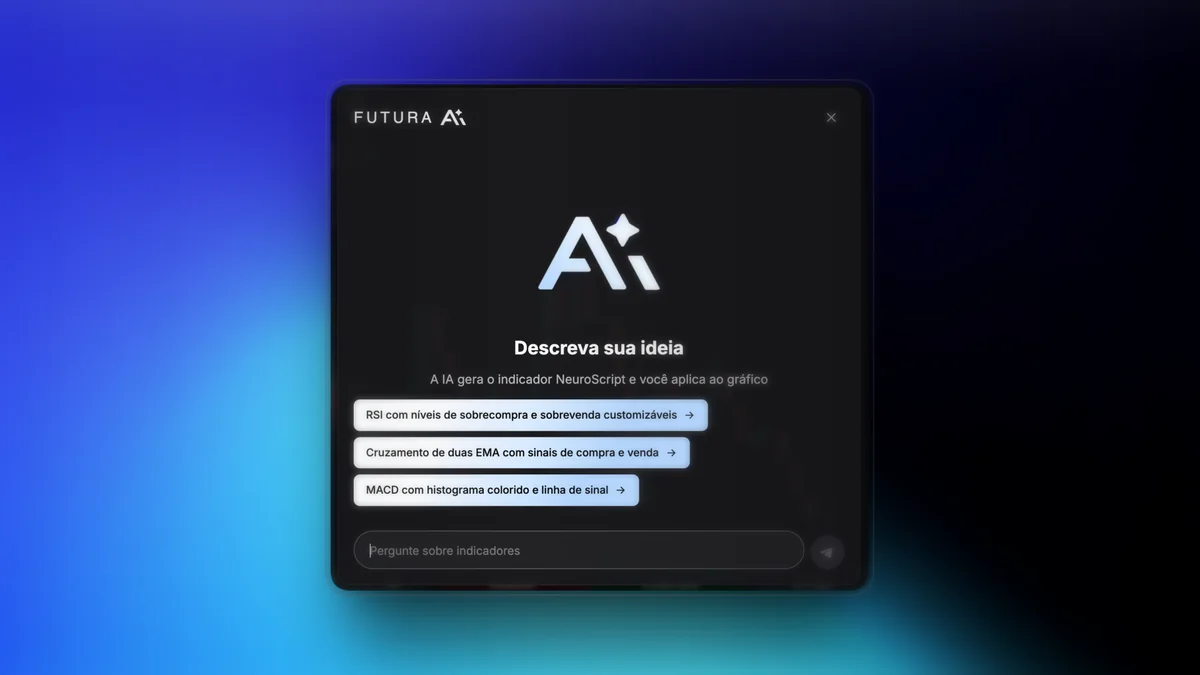
What to check in the Preview:
- Are the colors right? Uptrend line green, downtrend red?
- Do the arrows appear where they should? On crossovers, breakouts?
- Does the indicator respect the right type? Overlay (on top of the price) or a separate pane (RSI, MACD)?
- Are inputs actually configurable? Open the configuration panel and check that the parameters appear
If something is wrong, go back to Step 4 and request the adjustment.
Step 6 — Apply to the chart or publish
With the indicator validated, you have 3 options:
Option 1 — Insert into the editor
Click Insert into editor (white button with a downward arrow). The code goes to the Trade Room's NeuroScript editor. Save it, activate it on your trading chart. Done.
Option 2 — Copy to use later
Click Copy (clipboard button). The code goes to the clipboard so you can paste it elsewhere — another account, a backup, a GitHub Gist to share with friends.
Option 3 — Publish on the Marketplace
Click Publish (button with an upward arrow). It opens the PublishScriptModal — you set a price (between 100 coins / R$ 1 and 50,000 coins / R$ 500), description, FAQ, and category. The indicator becomes available for other traders to buy.
This flow is detailed in the full Marketplace case study.
Common errors and how to fix them
An error warning appears in the Preview The AI may generate a version with some issue on the first attempt. Go back to refine and describe what's wrong — it adjusts.
The indicator renders but the colors are wrong Ask in refine: "change the main line color to blue."
The indicator should be an overlay but appears in a separate pane Ask in refine: "turn it into an overlay indicator" (or vice versa).
The generation froze midway Click Stop and try again.
Daily generation limit reached Each account gets 5 generations per day. If you need more, reach out to support or wait 24h for the reset.
Next steps
Now that you know how to generate indicators, take a look at:
- Best trading indicators for 2026 — for references on what works historically
- How to use indicators on the chart — a practical configuration guide
- Real case: we created an indicator with AI and sold it on the Marketplace — a full account of the creator flow
- AI and ChatGPT in binary options trading — a comparison between external AI (ChatGPT/Claude) and Futura's native AI
If you want to dive straight in, open the Trade Room and click NeuroScript. In 5 minutes you'll walk away with your first custom indicator up and running.